Motion Control is MakeInfluencer.ai's most viral feature. It takes a still image of your AI influencer and a reference motion video, then generates a new video where your character performs the exact same movement. Trending TikTok dances, expressive gestures, product showcases, walking clips -- any human motion from a reference video can be transferred to your AI influencer's image.
The result is a video that looks like your AI influencer was filmed performing the choreography or movement in person. Combined with the Nano Banana Pro pose-matching technique covered in this guide, Motion Control produces remarkably clean, artifact-free output that is ready to post directly to social media.
Why Motion Control Drives Viral Growth
Dance and motion videos dominate social media algorithms. TikTok, Instagram Reels, and YouTube Shorts all prioritize dynamic video content over static images. The problem for AI influencer creators has always been obvious: how do you make a computer-generated character dance?
Motion Control solves this completely. Instead of trying to prompt an AI to generate realistic choreography from scratch (which rarely works well), Motion Control uses a real video as the motion blueprint. The AI analyzes the movement frame by frame and re-renders each frame with your character's appearance. The motion is real because it came from a real video -- only the person performing it has changed.
What Makes It So Effective
Trend Hijacking
Any trending dance or motion clip can be recreated with your AI influencer within minutes of going viral.
Real Human Motion
Motion is extracted from actual video footage, so movement looks natural and physically accurate.
Identity Preservation
Your AI influencer's face, body type, clothing, and overall appearance are maintained throughout the video.
Fast Turnaround
Generate a finished motion video in minutes, not hours. React to trends before they peak.
Up to 30 Seconds
Create clips long enough for complete dance routines, product showcases, and multi-move sequences.
Multiple Motions, One Character
Reuse the same character image with dozens of different motion videos for a library of varied content.
Important: Content Policy
Motion Control Does Not Support
Both your character image and reference motion video must be safe for work. Generations involving explicit content will fail and credits may not be refunded. For video content, use other video pipelines such as WAN 2.2 or WAN 2.6 Flash. See the AI video generation guide for all available options.
The Complete Motion Control Workflow
The highest-quality Motion Control results come from a three-step workflow: source preparation, pose matching with Nano Banana Pro, and Motion Control generation. Skipping the pose-matching step is possible but produces noticeably lower quality output with more artifacts and identity drift.
Step 1: Gather Your Source Materials
You need two things to start:
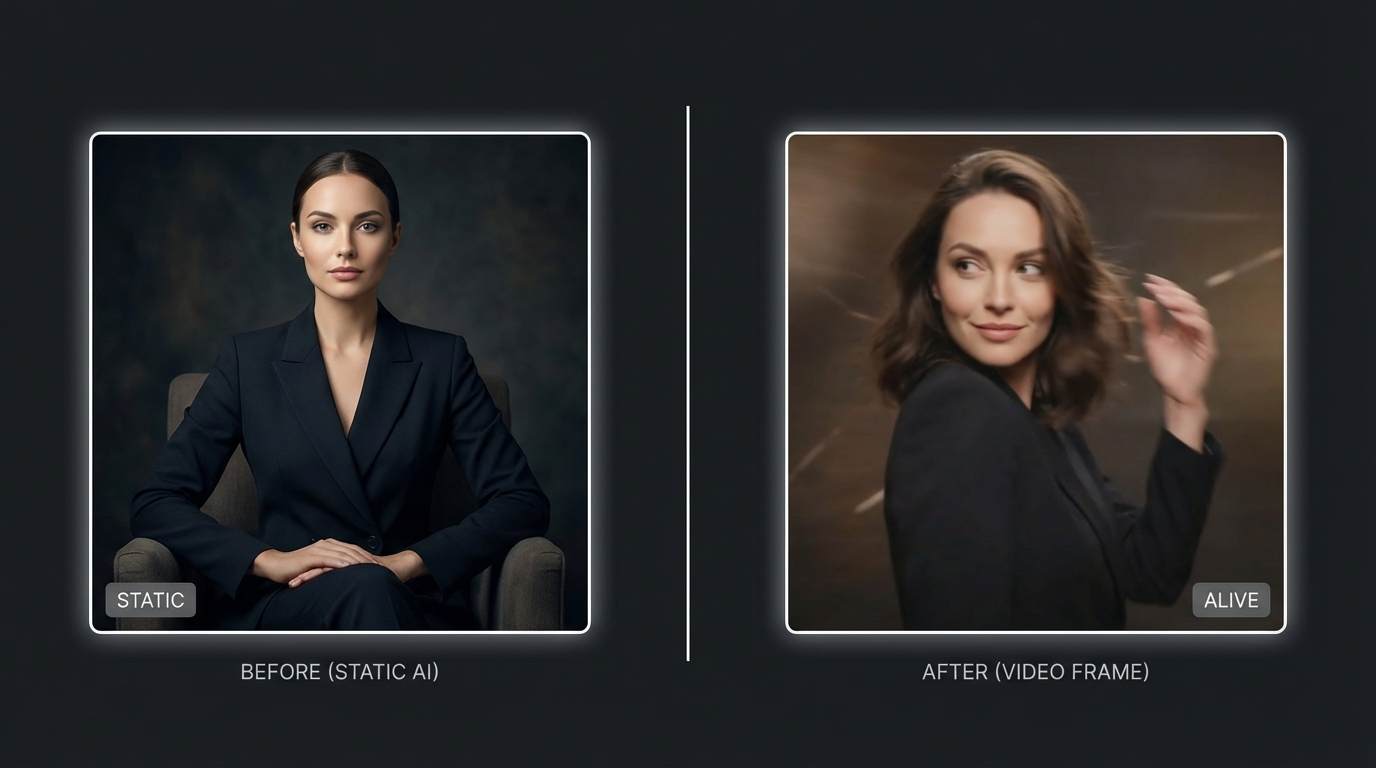
Your Original Character Image
This is a clear photo or generated image of your AI influencer. It defines who will appear in the final video.
- Portrait or full-body shot
- Face clearly visible with good lighting
- Front-facing or slight angle
- Generated with any image model on MakeInfluencer.ai, or uploaded from your library
Your Reference Motion Video
This is the video whose movement you want to copy. It could be a trending TikTok dance, a product showcase motion, or any clip with human movement.
- Any video with clear human motion
- The person should be fully visible (avoid heavy occlusion or cropping)
- Good lighting and stable footage produce better results
- Save or download the video to your device
Image Requirements:
- Formats:
.jpg,.jpeg,.png - File Size: Maximum 10MB
- Dimensions: Minimum 300px width and height
- Aspect Ratio: Between 1:2.5 and 2.5:1
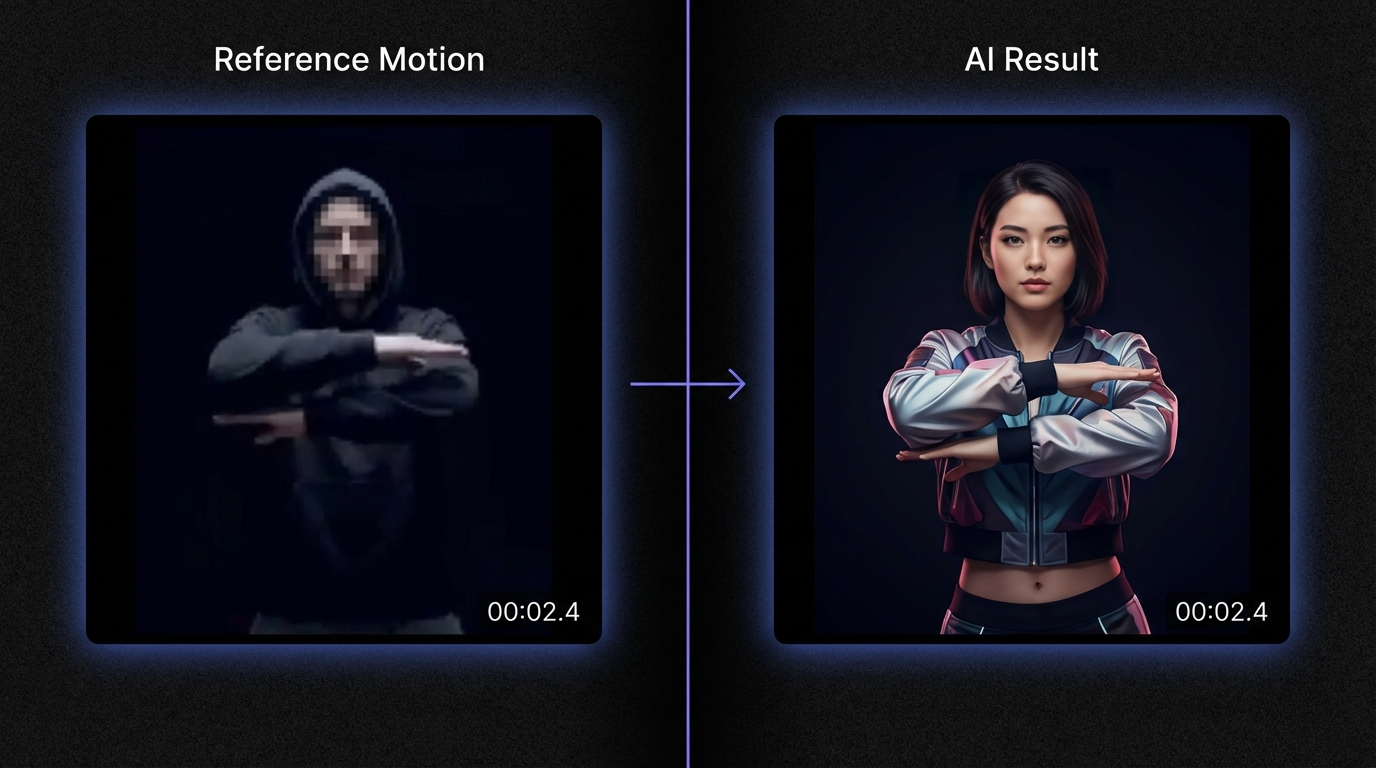
Critical Step: Screenshot the First Frame
Take a screenshot of the very first frame of your reference motion video. This screenshot is essential for Step 2. The first frame shows the starting pose, and matching your character to this pose before running Motion Control dramatically improves the final output.
Why the First Frame Matters
Motion Control begins rendering from the first frame of the reference video. If your character image does not match the starting pose, the AI has to simultaneously change the pose AND transfer motion, which causes artifacts, warping, and identity loss. Matching the first frame eliminates this problem entirely.
Step 2: Pose Matching with Nano Banana Pro
This is the step that separates average Motion Control results from professional-quality output. You will use Nano Banana Pro in the Image Generator to create a new version of your character that matches the starting pose of your reference video.
Open Image Generator
Navigate to the Generate tab in your dashboard and select Nano Banana Pro as your model.
Upload Two Images
First image: your original character. Second image: the first-frame screenshot from your reference motion video.
Write a Pose-Matching Prompt
Describe exactly what you need: replicate the person from the first image in the pose, expression, and clothing of the second image.
Generate and Select
Generate the pose-matched image. Review the result to ensure your character's identity is preserved while the pose matches the reference.
Recommended Prompts for Pose Matching:
Replicate the person from the first image in the exact pose, expression, and clothing of the person in the second image. Keep the identity and face from the first image; only change pose and body position to match the second.
Shorter alternatives that also work well:
Convert the woman in the first image into the pose of the second, same clothes.
Put the first person in the exact pose and outfit of the second image.
The output from Nano Banana Pro is your pose-matched character image. This is what you will feed into Motion Control in the next step.
Quality Check
Before proceeding, compare your pose-matched image to the first frame of the reference video. The body position, angle, and general pose should match closely. If they do not, regenerate with a more specific prompt. This small investment in matching quality pays off enormously in the final video.
Step 3: Run Motion Control
With your pose-matched image ready, navigate to Video Gen and select the Motion Control tab.
- Character Image -- Upload the pose-matched image from Step 2 (the Nano Banana Pro output). Do NOT use your original character image here.
- Motion Video -- Upload the full reference motion video from Step 1.
- Configure settings -- Choose your quality and orientation settings (see Advanced Settings below).
- Generate -- Click Generate and wait for processing. Typical generation time is 1-3 minutes depending on video length.
The engine analyzes each frame of the reference video, extracts the motion data, and re-renders every frame with your character's appearance. The result is your AI influencer performing the exact movement from the reference video.
Step 4: Review and Download
Preview your generated video directly in the platform. Check for:
- Identity consistency -- Does your character look like themselves throughout the video?
- Motion accuracy -- Does the movement match the reference video?
- Visual artifacts -- Look for warping, flickering, or distortion, especially around the face and hands.
- Overall quality -- Is the video clean enough to post on social media?
If the result meets your standards, download the video. If not, try regenerating with a different pose-matched image or adjusted settings.
Step 5: Add Audio and Publish
Motion Control generates video without audio. Add sound in post-production:
- Trending audio -- Add the trending song or sound from TikTok or Instagram directly in the app when posting.
- Music overlay -- Use a video editor (CapCut, Premiere, DaVinci Resolve) to add background music.
- Voiceover -- Record or generate a voiceover with Lip Sync for tutorial or commentary content.
Then publish to your target platforms. Motion Control videos with trending audio consistently outperform static image posts in engagement metrics.
Advanced Settings
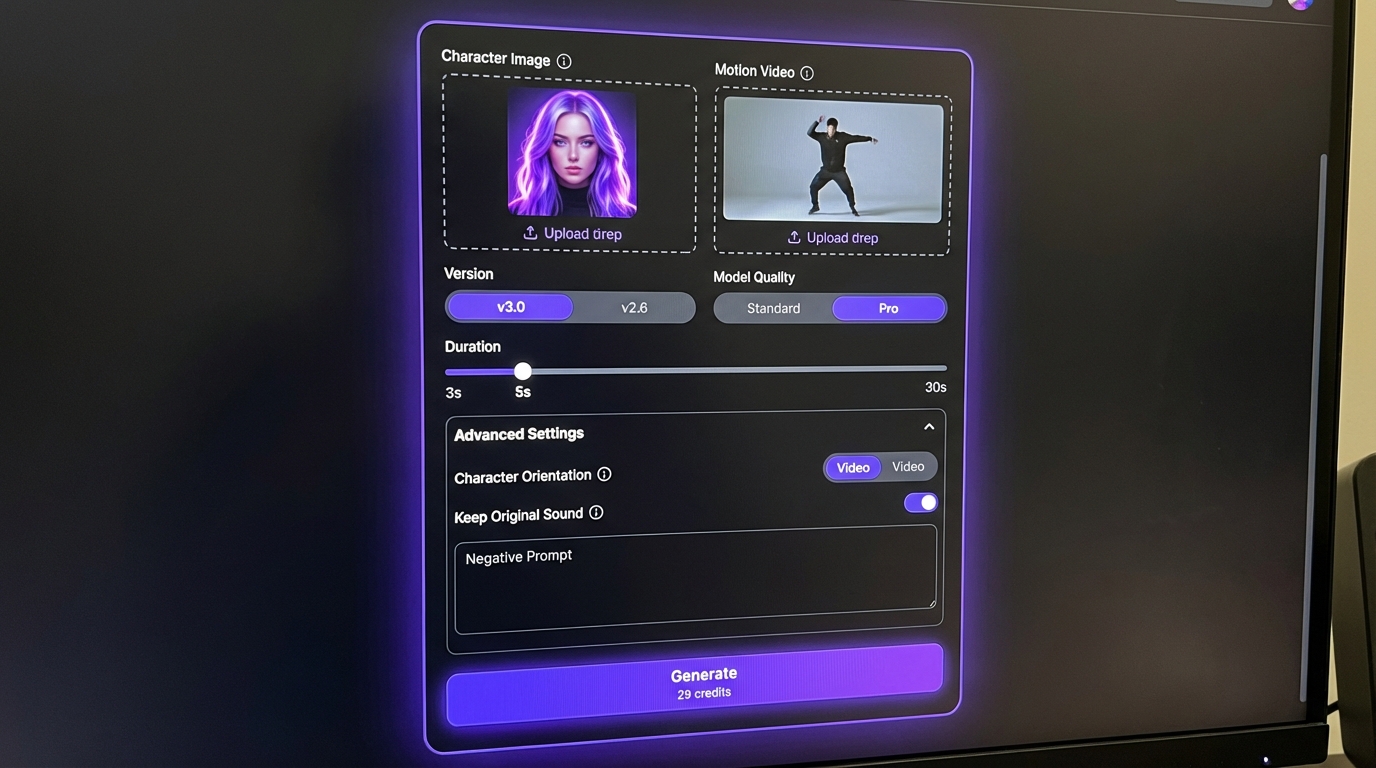
Orientation Setting
Motion Control offers two orientation modes that affect how the AI prioritizes rendering:
- Image orientation -- Prioritizes preserving the character's appearance and identity. Best when the reference video involves significant camera movement, panning, or zooming. The character stays visually stable even as the virtual camera moves.
- Video orientation -- Prioritizes accurate motion transfer. Best when the character performs complex choreography or detailed body movement with a relatively stable camera. Motion fidelity is maximized.
When to use each:
- Camera pans, zooms, or tracking shots in the reference video: choose Image
- Dance routines, hand gestures, or detailed body movement: choose Video
- Unsure: default to Video for most social media dance content
Quality Tiers
- Standard -- Faster generation, lower credit cost. Good for testing and drafting.
- Pro -- Higher quality rendering with better detail preservation. Use for final content destined for publishing.
Pro Model for Final Content
Always use the Pro model for content you plan to publish. The quality difference is visible, especially in facial detail and clothing physics. Use Standard for testing which reference videos work best, then regenerate your winner with Pro.
Motion Control Use Cases
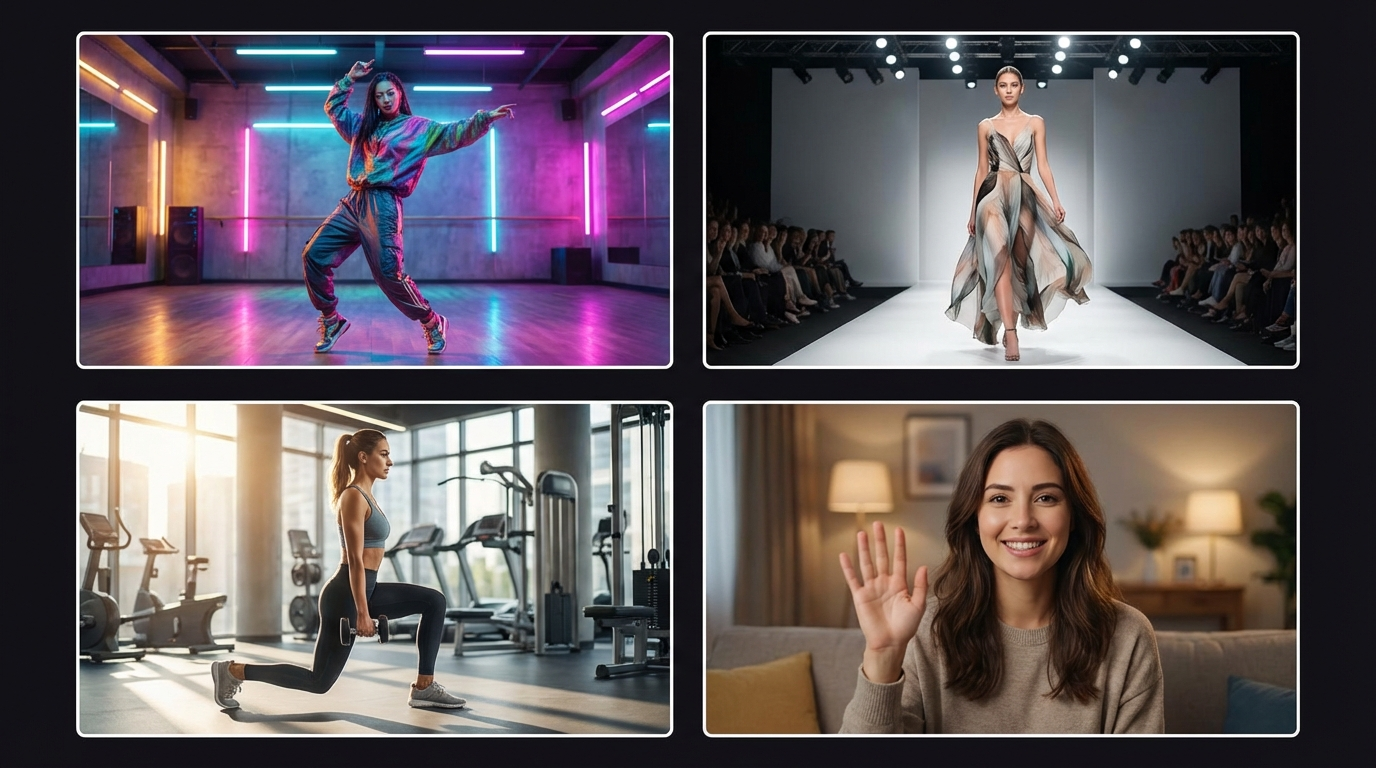
Viral TikTok and Instagram Reels
This is the primary use case. When a new dance or motion trend goes viral:
- Download the trending video
- Screenshot the first frame
- Pose-match your character with Nano Banana Pro
- Generate the Motion Control video
- Add the trending audio
- Post to TikTok, Instagram, or YouTube Shorts
The entire workflow takes 10-15 minutes. You can react to trends the same day they emerge, which is critical for algorithmic reach.
Product Showcases
Create dynamic product presentation videos:
- Generate an image of your AI influencer holding or wearing a product
- Use a reference video of someone showcasing the item (turning it, pointing to features, modeling it)
- Motion Control creates a video of your influencer presenting the product with natural movement
Dance and Performance Content
Build a library of dance content featuring your AI influencer:
- Use reference videos from different dance styles: hip-hop, contemporary, K-pop choreography, trending challenges
- Generate variations with different outfits by creating new pose-matched images with different clothing prompts
- Post consistently to build a reputation as a "dancing" AI influencer
Before and After Content
Show transformations or comparisons:
- Create two Motion Control videos with the same reference motion but different character images (different outfit, hairstyle, or setting)
- Edit them side by side for engaging comparison content
Pro Tips for Best Results
Lighting Consistency
Keep the lighting in your Nano Banana Pro pose-matched image similar to the lighting in the reference video. If the reference video was filmed in bright daylight, your character image should also have bright, natural lighting. If the reference has moody, low-key lighting, match that mood. Lighting mismatches create an uncanny disconnect in the final video.
Character Image Composition
- Full body is ideal -- The more of the body visible in your character image, the better the motion transfer looks.
- Avoid cropped faces -- Half-face or heavily cropped images reduce the AI's ability to map motion accurately.
- Simple backgrounds -- Clean backgrounds reduce rendering artifacts and keep the focus on your character's movement.
Reference Video Selection
Not all reference videos produce equal results:
- Clear, well-lit footage works significantly better than dark or grainy clips.
- Single person in frame -- Multiple people confuse the motion extraction. Use clips with one clear subject.
- Stable camera -- Handheld shaky footage produces lower quality results than stable or tripod shots.
- Visible limbs -- Ensure the person's arms and legs are visible throughout. Heavy occlusion (hands behind back, legs behind furniture) reduces motion accuracy.
Iteration Strategy
For important content:
- Generate 2-3 pose-matched images with slightly different prompts
- Run Motion Control with each one using Standard quality
- Compare results and pick the best
- Regenerate the winner with Pro quality
This systematic approach consistently produces better results than generating a single version and hoping for the best.
Combining Motion Control with Other Features
Motion Control + Lip Sync
Create a two-part content series:
- Part 1: A Motion Control dance or movement video with trending audio
- Part 2: A Lip Sync talking video where your influencer discusses the trend, shares behind-the-scenes commentary, or engages with audience reactions
This combination gives you both high-engagement visual content and connection-building conversational content from a single AI influencer.
Motion Control + Image Generation
For every Motion Control video, you can generate matching still images with the same outfit, pose, and setting. Post the video on TikTok and the matching image on Instagram as a coordinated cross-platform strategy.
Motion Control + Subject Swap
If the Motion Control output is close but not perfect, you can use Subject Swap as a refinement step -- swapping your character into the generated video to improve identity consistency. This is an advanced technique but can rescue borderline results.
Troubleshooting Common Issues
Character Does Not Look Like Themselves
- Improve pose matching -- The most common cause is a weak pose match in Step 2. Regenerate the Nano Banana Pro image with a more specific prompt.
- Use Pro quality -- Standard quality has less identity preservation than Pro.
- Check image resolution -- Low-resolution character images lose detail during motion transfer.
Motion Looks Unnatural or Jittery
- Better reference video -- Replace shaky or low-quality reference footage with a cleaner clip.
- Simpler motion -- Complex, fast movements are harder to transfer accurately. Start with slower, more deliberate movements and work up to complex choreography.
- Try Video orientation -- If using Image orientation, switch to Video for better motion fidelity.
Artifacts Around the Face or Hands
- Better lighting match -- Ensure your character image and reference video have similar lighting conditions.
- Cleaner pose match -- Face and hand artifacts often stem from poor pose matching in Step 2. Compare your pose-matched image more carefully to the first frame.
- Simple clothing -- Highly detailed or patterned clothing can cause rendering artifacts. Try a version with simpler attire.
Frequently Asked Questions
Does Motion Control support ?
No. Motion Control requires both the character image and reference motion video to be safe for work. Attempts to generate will fail and credits may not be refunded. For video, use other pipelines like WAN 2.2 or WAN 2.6 Flash -- see the AI video generation guide.
What is the maximum video duration for Motion Control?
Motion Control supports videos up to approximately 30 seconds long. This is enough for most TikTok dances, Instagram Reels, and YouTube Shorts. For longer content, generate multiple clips and combine them in a video editor, or use Lip Sync for long-form talking videos.
Can I use any video as a motion reference?
Yes, as long as it contains clear human motion with a visible subject. The best reference videos have a single person in frame, good lighting, stable camera work, and visible limbs. Avoid clips with multiple people, heavy occlusion, or extreme camera movement.
Do I need Nano Banana Pro for pose matching?
Technically no -- you can use any character image directly in Motion Control. However, pose matching with Nano Banana Pro significantly improves output quality by ensuring your character's starting pose matches the first frame of the reference video. We strongly recommend this step for all published content.
How many credits does Motion Control cost?
Credit costs vary based on video duration and quality tier (Standard vs. Pro). Pro generates higher quality output at a higher credit cost. Check the current pricing on your dashboard or the pricing page for exact credit amounts.
Can I use Motion Control for commercial content?
Yes. Videos generated on MakeInfluencer.ai can be used for commercial purposes including brand collaborations, product promotions, social media monetization, and affiliate marketing campaigns. For more on monetizing AI influencer content, see the make money with AI influencers guide.
Start Creating Motion Control Videos Today
Motion Control is the fastest path from static AI influencer image to viral social media content. The Nano Banana Pro pose-matching workflow described in this guide gives you professional-quality results that look like your character was actually filmed performing the choreography.
React to trends the same day they emerge. Build a library of dance and motion content. Grow your AI influencer's following with the most engaging content format on every major platform.
Create your account and generate your first Motion Control video in the next 15 minutes.