Google's Veo 3 (VEO 3.1) generates 4-8 second videos with optional high-quality audio from text prompts. The audio capabilities include dialogue, voice-overs, sound effects, and music -- making Veo 3 uniquely powerful for talking character videos and immersive scene creation.
Veo 3 produces the highest visual fidelity of any AI video model available on MakeInfluencer.ai. This guide teaches you the prompting techniques that unlock its full potential, from writing natural dialogue to directing camera movements and avoiding common pitfalls.
Critical Warnings
Before you start generating, understand the two most important limitations of Veo 3. These will save you credits and frustration.
Celebrity and Real Person Detection
Google Veo 3 frequently fails if it detects the character resembles a real person or celebrity. If you use an influencer image and Google's system flags it as sensitive or resembling a real person, your generation will fail and credits will be lost with no refund. For talking videos with influencer faces, use the Lip Sync feature instead -- it is much more reliable for influencer content.
Google Veo 3 does not support . If your prompt or images contain, generation will fail and credits will not be refunded. For video, use or WAN 2.6 Flash.
What Veo 3 Excels At
AI-Generated Original Faces
Works best with AI-generated characters rather than real person images. Ideal for original creative content.
Abstract and Artistic Content
Exceptional at non-sensitive, creative content without real-world celebrity references.
Text-to-Video Generation
Strongest performance with no input image, creating complete scenes from text descriptions alone.
Dialogue Generation
Can generate characters speaking with natural lip sync, voice, and ambient audio in a single pass.
Highest Visual Fidelity
Arguably the most photorealistic AI video output available in 2026 for SFW content.
Multiple Style Support
Photorealistic, Pixar-style, LEGO, anime, claymation, graphic novel, and many more visual styles.
Prompt Structure
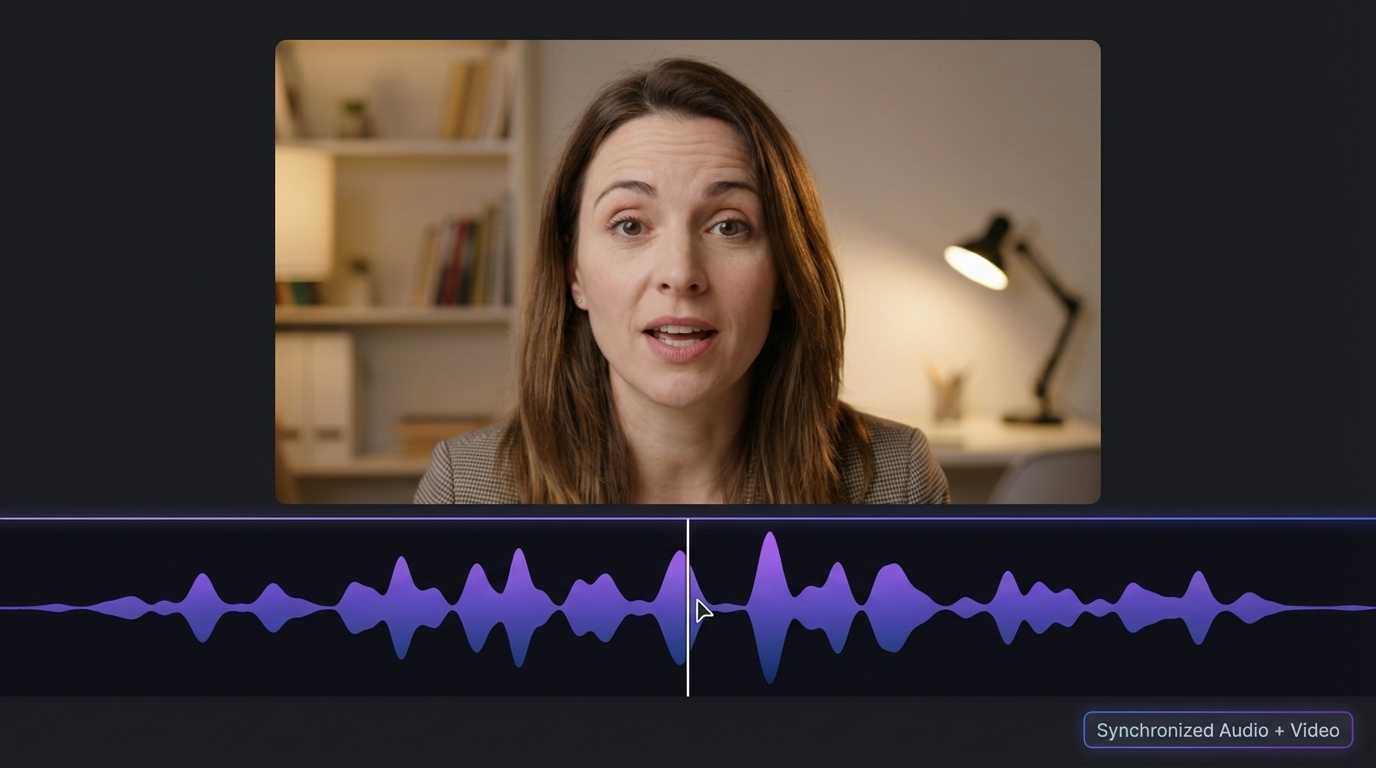
A well-crafted Veo 3 prompt includes six elements, similar to Sora 2 but with unique audio and dialogue capabilities that set it apart.
The Six Elements
- Subject: Who or what is in the scene -- detailed physical description
- Context: Where the subject is located -- environment and setting
- Action: What is happening -- movements, gestures, interactions
- Style: Visual aesthetic -- cinematic, animated, documentary, artistic
- Camera Motion: How the camera moves -- tracking, dolly, zoom, pan
- Audio: Dialogue, ambient sounds, music, and sound effects
Basic vs Detailed Prompts
Basic: A man answers a phone
Detailed: A desperate man in a weathered green trench coat picks up a rotary phone mounted on a gritty brick wall, bathed in the eerie glow of a green neon sign. The camera uses a shaky dolly zoom from far away to close-up, revealing tension on his face. Background has neon colors and shadows. Tense ambient music with phone ring and distant rain.
Dialogue and Speech
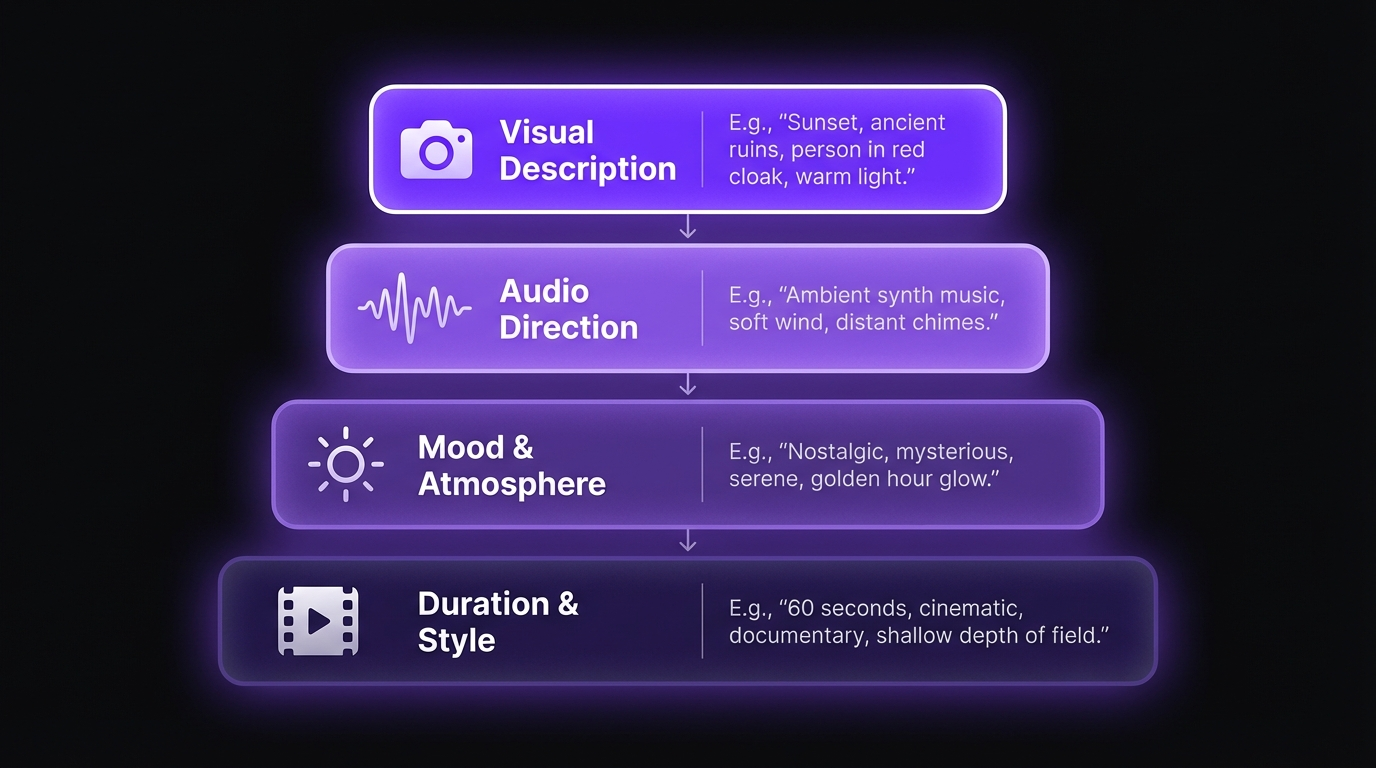
One of Veo 3's most unique capabilities is generating characters with synchronized speech. This sets it apart from most other AI video models.
Writing Dialogue
Use the colon format for character speech:
Character says: "Your dialogue here"
Dialogue Best Practices
Keep Speech Short
Maximum 8 seconds of dialogue. Veo 3 videos are 4-8 seconds long, so keep dialogue concise and impactful.
Use Colon Format
Always use 'Character says:' followed by quoted dialogue. Avoid other formats that may produce inconsistent results.
Prevent Unwanted Subtitles
Add '(no subtitles!)' after your dialogue to prevent Veo 3 from adding text overlays to the video.
Specify the Speaker
In multi-character scenes, be specific about who is speaking to avoid confusion in the generated output.
Dialogue Examples
Explicit dialogue:
A chef in a white apron says: "The secret to perfect pasta is
timing!" (no subtitles!). Kitchen sounds in background with
gentle sizzling and ambient restaurant noise.
Implicit dialogue:
A chef explains the secret to perfect pasta cooking (no subtitles!).
Kitchen ambiance with sizzling and clinking of utensils.
Dialogue vs Lip Sync
For longer speaking videos with your AI influencer, use the Lip Sync feature instead of Veo 3 dialogue. Lip Sync supports up to 10 minutes of audio and works reliably with influencer face images. Use Veo 3 dialogue for short, original character clips.
Audio Prompting
Veo 3 generates audio with each video. Directing the audio is just as important as directing the visuals.
Audio Elements
- Dialogue: What characters are saying (use colon format)
- Ambient noise: Environmental sounds (busy street, cafe, ocean)
- Sound effects: Specific noises (phone ringing, footsteps, glass clinking)
- Music: Background music style and mood (soft jazz, epic orchestral)
Audio Examples
Soft jazz music plays with gentle cafe ambiance and espresso machine
Epic orchestral music with medieval sounds and clanking armor
Kitchen sounds, gentle sizzling, knife on cutting board
Birds chirping, soft wind through leaves, distant stream
Preventing Unwanted Audio
If you get unwanted audio elements (like studio audience laughter), add specific ambient audio descriptions and explicitly exclude the unwanted element. Example: "Sounds of distant bands, noisy crowd, ambient background of a busy festival field (no studio audience)."
Professional Prompt Examples
Talking Character Videos
Cafe Conversation:
A friendly woman with curly brown hair in a cozy cafe, wearing a
cream sweater, looks directly at the camera with a warm smile.
She says: "Welcome to our little coffee corner! I just made the
most amazing latte art, want to see?" (no subtitles!). Soft jazz
music plays in the background with gentle cafe ambiance.
Travel Vlog Selfie:
A selfie video of a travel vlogger with short blonde hair, wearing
a vintage denim jacket, exploring a bustling Tokyo street market.
She holds the camera at arm's length, her arm visible in frame.
She says: "You have to try this ramen place when you visit Tokyo -
it's been family-owned for 50 years!" (no subtitles!). Background
sounds of busy market and distant chatter.
Cooking Tutorial:
A chef with a white apron and friendly smile in a modern kitchen,
hands moving expressively as he explains. He says: "The secret to
perfect pasta is timing - al dente means it should have just a
tiny bite to it" (no subtitles!). Kitchen sounds, gentle sizzling.
Artistic Style Videos
Pixar Animation:
In the style of Pixar animation: A cheerful robot with big
expressive eyes discovers a small flower growing through concrete
in a futuristic city. The robot gently touches the flower with
wonder. Soft orchestral music plays with gentle wind sounds.
LEGO Style:
In the style of LEGO: A LEGO minifigure knight stands heroically
on a castle wall at sunset, wind blowing through a LEGO flag.
Epic cinematic music with medieval ambiance sounds.
Anime Style:
In the style of anime: A young warrior with silver hair stands
on a mountain peak, cape flowing in the wind, overlooking a vast
fantasy landscape with floating islands. Dramatic orchestral
music with wind sounds.
Selfie-Style Videos
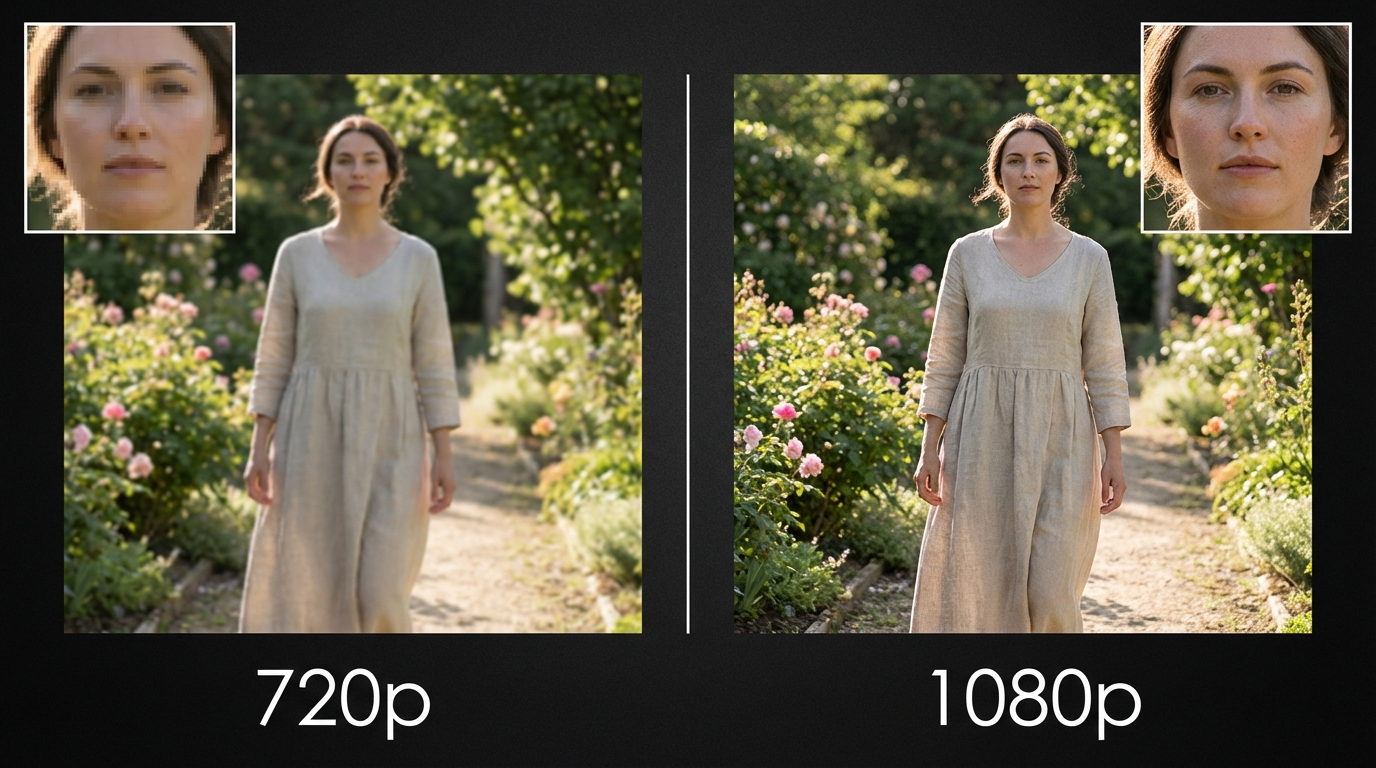
Veo 3 excels at creating authentic-looking selfie videos. These perform exceptionally well on social media platforms where audiences expect personal, direct-to-camera content.
Selfie Video Formula
- Start with "A selfie video of..."
- Make the arm visible: "holds the camera at arm's length, arm visible in frame"
- Include natural eye movement: "occasionally looking into the camera"
- Add authentic texture: "The image is slightly grainy, looks film-like"
- Describe the environment the character is in
- Add natural ambient audio
This format creates content that feels genuine and personal, making it ideal for social media content creation and going viral.
Camera Techniques
Veo 3 responds well to standard cinematographic terminology. Including camera direction in your prompt significantly improves the quality and professionalism of the output.
Movement Types
Dolly Shot:
A slow dolly shot moves through a misty forest at dawn, revealing
ancient trees covered in moss. Gentle nature sounds, birds
chirping, soft wind through leaves.
Zoom Out Reveal:
A dramatic zoom out from a close-up of a dewdrop on a flower
petal to reveal a vast meadow filled with wildflowers under
morning sunlight. Peaceful nature ambiance.
Camera Terms Reference
Use these terms for specific camera work in your prompts:
- Eye level: Standard perspective, natural and relatable
- High angle: Looking down -- shows vulnerability or overview
- Low angle: Looking up -- creates drama and power
- Dolly shot: Camera moves forward or backward on a track
- Tracking shot: Camera follows the subject laterally
- Pan shot: Camera rotates horizontally on a fixed point
- Zoom in/out: Focal length changes while camera stays fixed
Style Variations
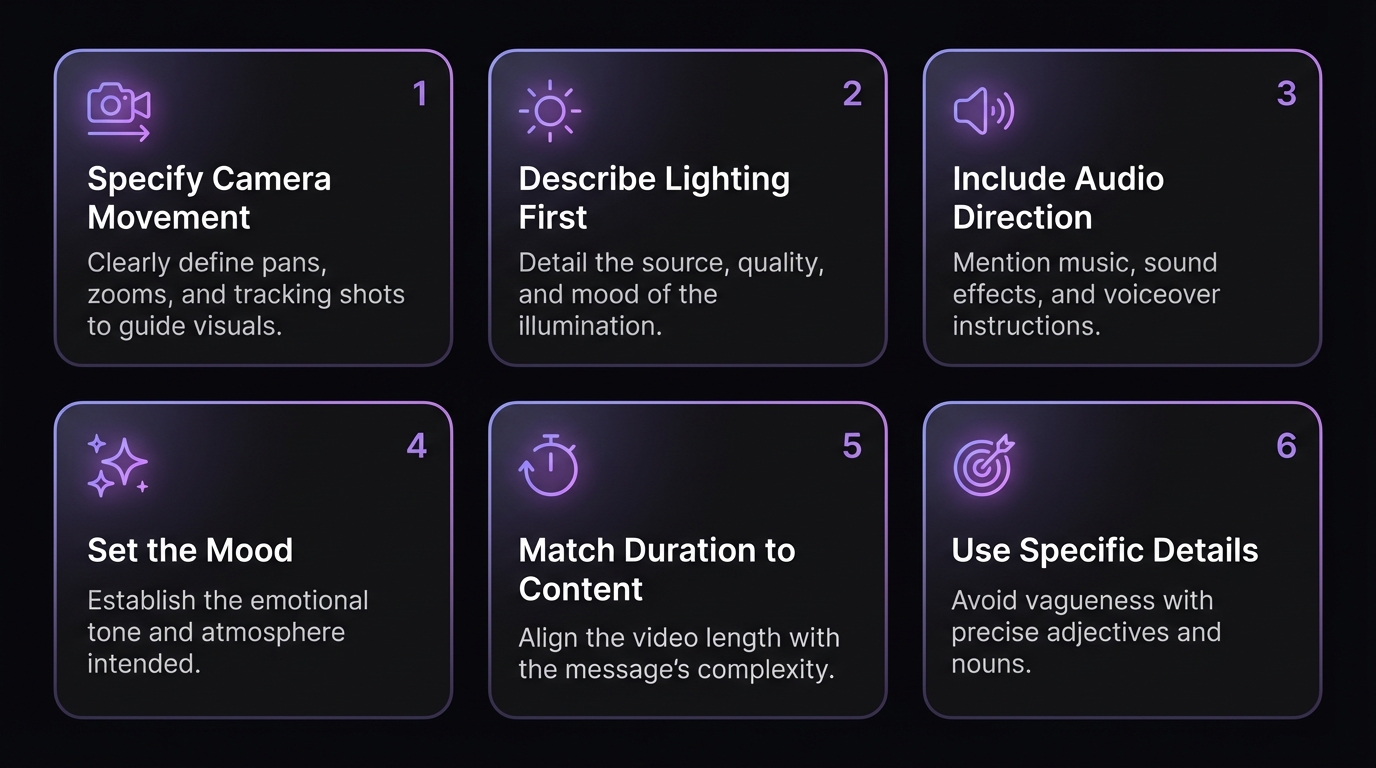
Veo 3 supports a wide range of artistic styles. Prefix your prompt with the style declaration for consistent results.
Available Styles
Animation Styles
Pixar, Claymation, South Park, LEGO, Simpsons -- each with distinctive visual characteristics.
Artistic Styles
Graphic novel, origami, marble sculpture, blueprint, 8-bit retro -- for creative expression.
Cinematic Styles
Photorealistic, documentary, vintage film, noir -- for professional-looking video content.
Avoiding Common Issues
Preventing Subtitles
Unwanted text overlays are one of the most common Veo 3 issues. Follow these rules:
- Always add "(no subtitles!)" in your prompt when using dialogue
- Use the colon format for dialogue:
says: "text" - Avoid quote-only format:
says "text"(more likely to trigger subtitles) - If subtitles still appear, add "No subtitles. No subtitles!" at the end
Character Consistency
Keep character descriptions identical across multiple generations for visual consistency:
Sarah, a woman in her early 30s with shoulder-length auburn hair,
warm brown eyes, wearing a cream linen blouse and gold necklace,
with a friendly and confident expression
Repeat this exact description in every prompt featuring this character. For maximum character consistency across images and videos, use MakeInfluencer.ai's trained LoRA models.
Veo 3 vs Other Video Models
For a complete comparison, see the Best AI Video Generators 2026 guide.
Choose Veo 3 for the highest visual fidelity, dialogue-driven content, and photorealistic output. Choose Sora 2 for cinematic, artistic compositions and creative storytelling. Choose Kling v3.0 for cost-effective everyday content and Motion Control dance videos.
Pro Tips Summary
Always Add (no subtitles!)
Include this in every prompt that contains dialogue to prevent unwanted text overlays on your video.
Use Colon Format for Speech
Character says: 'Hello' -- this format produces the most reliable dialogue generation results.
Describe Audio in Detail
Specify ambient sounds, music style, and sound effects. Vague audio prompts produce generic results.
Consistent Character Descriptions
Use identical physical descriptions across all prompts for the same character to maintain visual continuity.
Include Camera Direction
Specify camera movement, angle, and framing for professional-looking output that stands above generic AI video.
Declare Style Upfront
Prefix your prompt with 'In the style of...' for consistent aesthetic treatment throughout the video.
Frequently Asked Questions
Can I use Veo 3 with my AI influencer images?
Use caution. Veo 3 frequently rejects images that resemble real people. For reliable talking videos with your AI influencer's face, use the Lip Sync feature instead. Use Veo 3 for original character content, establishing shots, and creative scenes that do not require a specific face.
Why did my Veo 3 generation fail?
The most common causes are: the input image resembled a real person (use AI-generated faces instead), the prompt contained copyrighted references, or the content was flagged as . Credits are not refunded for failed generations, so review content policies before generating.
What is the best video duration for social media?
Veo 3 generates 4-8 second videos. For TikTok and Reels, this is ideal for hooks, transitions, and standalone clips. For longer content, combine multiple Veo 3 clips in an editor or use Lip Sync for talking head videos up to 10 minutes.
How do I get the best dialogue quality?
Keep dialogue under 8 seconds. Use the colon format ("Character says:"). Add "(no subtitles!)" to prevent text overlays. Describe the character's speaking manner ("warm and enthusiastic" vs "calm and measured"). Include ambient audio to ground the dialogue in a realistic environment.
Can I combine Veo 3 with other MakeInfluencer.ai features?
Yes. Use Veo 3 for cinematic establishing shots and B-roll, then combine with Motion Control dance videos and Lip Sync talking heads for a complete content package. Use AI image generation to create the character images that feed into your video pipeline.
How does Veo 3 pricing work?
Veo 3 costs 8,000 credits per second without audio and 12,000 credits per second with audio. A typical 8-second video with audio costs 96,000 credits. Compare this with Kling v3.0 Standard at 4,000 credits per second for more budget-conscious workflows.
Start Creating with Veo 3
Veo 3 is the most visually impressive AI video model available in 2026. Master its prompting techniques and you will produce content that rivals professional video production at a fraction of the cost.
Sign Up for MakeInfluencer.ai
Create your account and choose a plan to start generating Veo 3 videos immediately.
Start with Text-to-Video
Begin with T2V prompts (no input image) to avoid celebrity detection issues while learning the model.
Practice the Six Elements
Include subject, context, action, style, camera motion, and audio in every prompt for best results.
Experiment with Dialogue
Try the colon dialogue format with (no subtitles!) to create talking character clips.
Build Your Content Pipeline
Combine Veo 3 cinematic clips with Motion Control and Lip Sync for a complete AI video workflow.