AI image editing has fundamentally changed the way creators work with photos. What once required hours of meticulous work in Photoshop -- carefully selecting areas, masking layers, adjusting blending modes -- can now be accomplished in seconds with a simple text prompt.
On MakeInfluencer.ai, you have access to some of the most powerful AI image editing models available, each with unique strengths and capabilities.
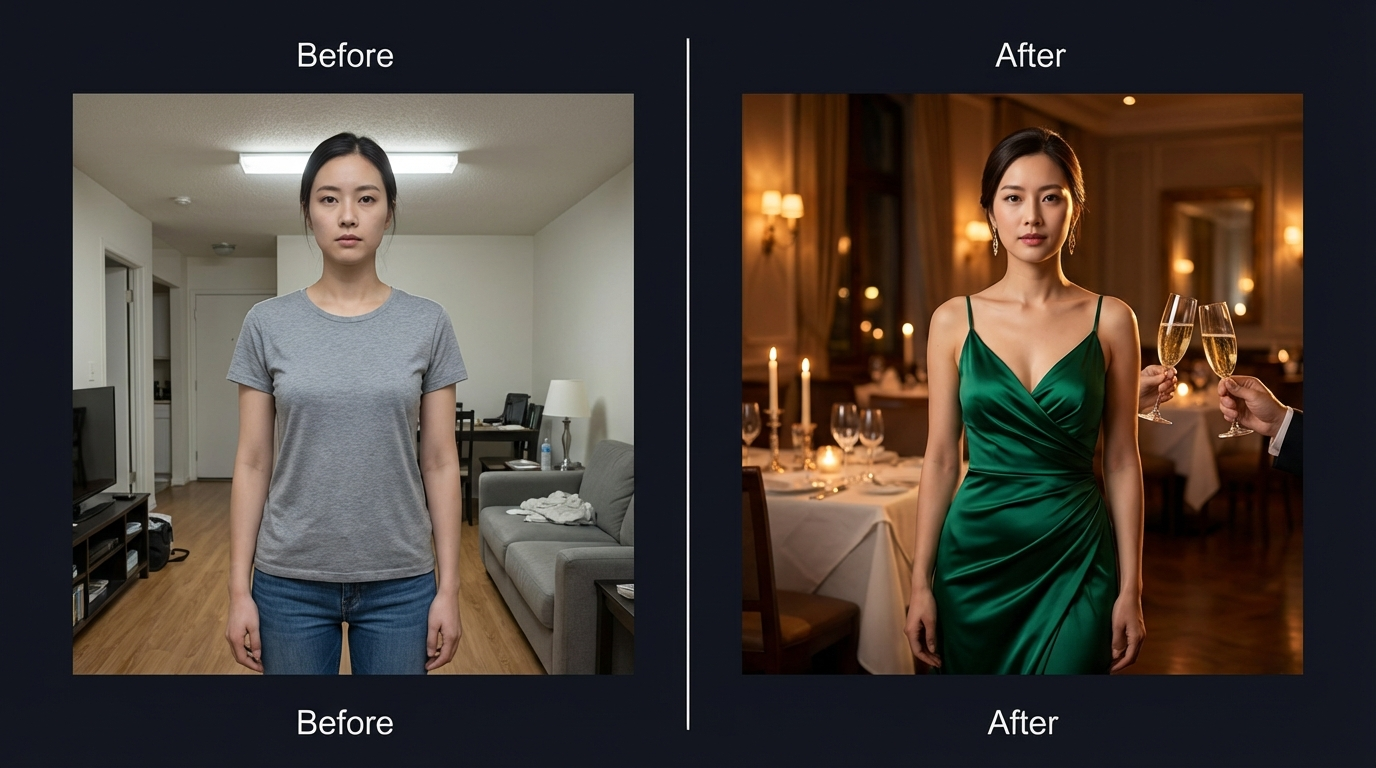
This guide provides a deep dive into every editing model on the platform, explains when to use each one, walks you through step-by-step workflows, and shares techniques for getting the best results. For an overview of all image generation models, see the Best AI Models for Image Generation guide.
What AI Image Editing Can Do
AI image editing uses machine learning models trained on billions of images to understand and manipulate visual content. Unlike traditional photo editing where you manually adjust pixels, AI editing lets you describe what you want in natural language.
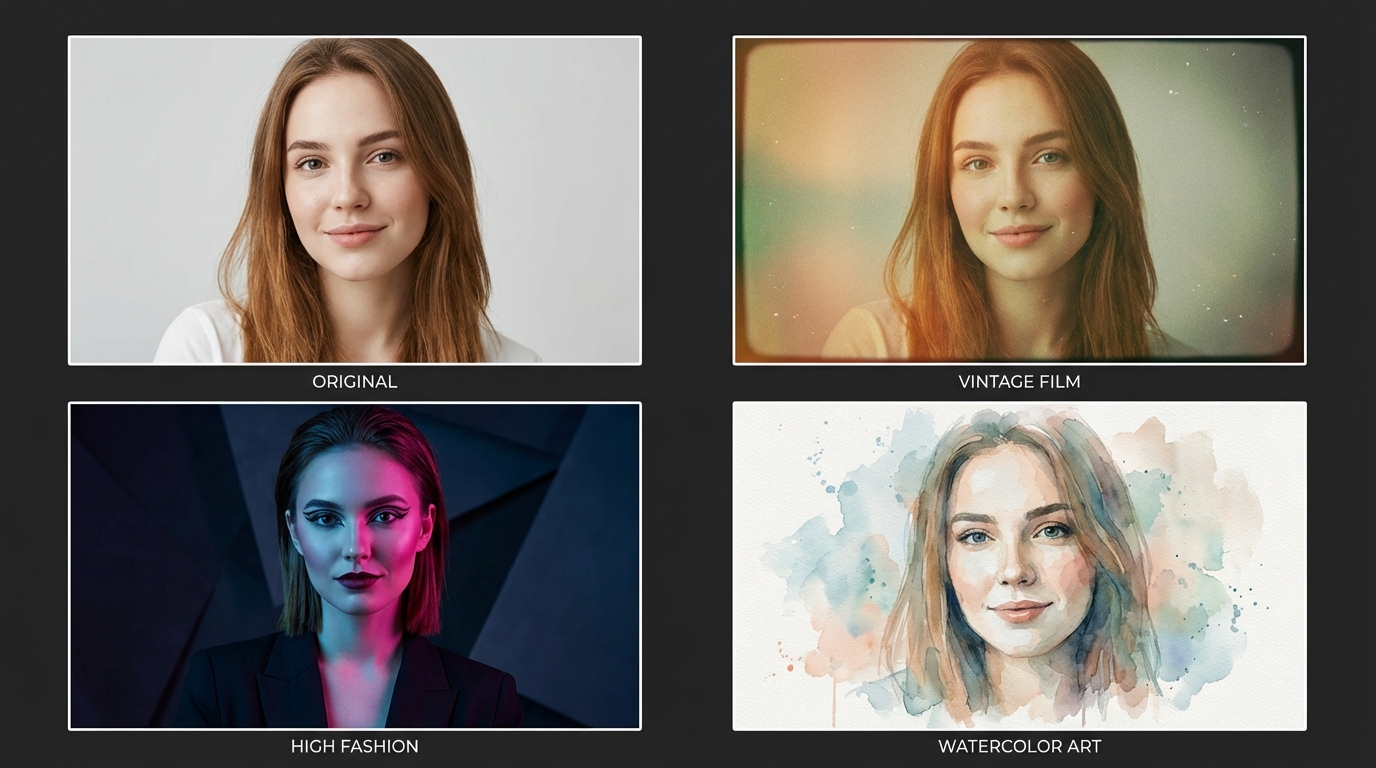
Style Transfer
Change the artistic style of any image -- photorealistic to anime, painting to photo, and every combination.
Object Editing
Add, remove, or modify objects within an image while preserving the surrounding context seamlessly.
Pose and Expression
Adjust a person's pose, facial expression, or body position without regenerating the entire image.
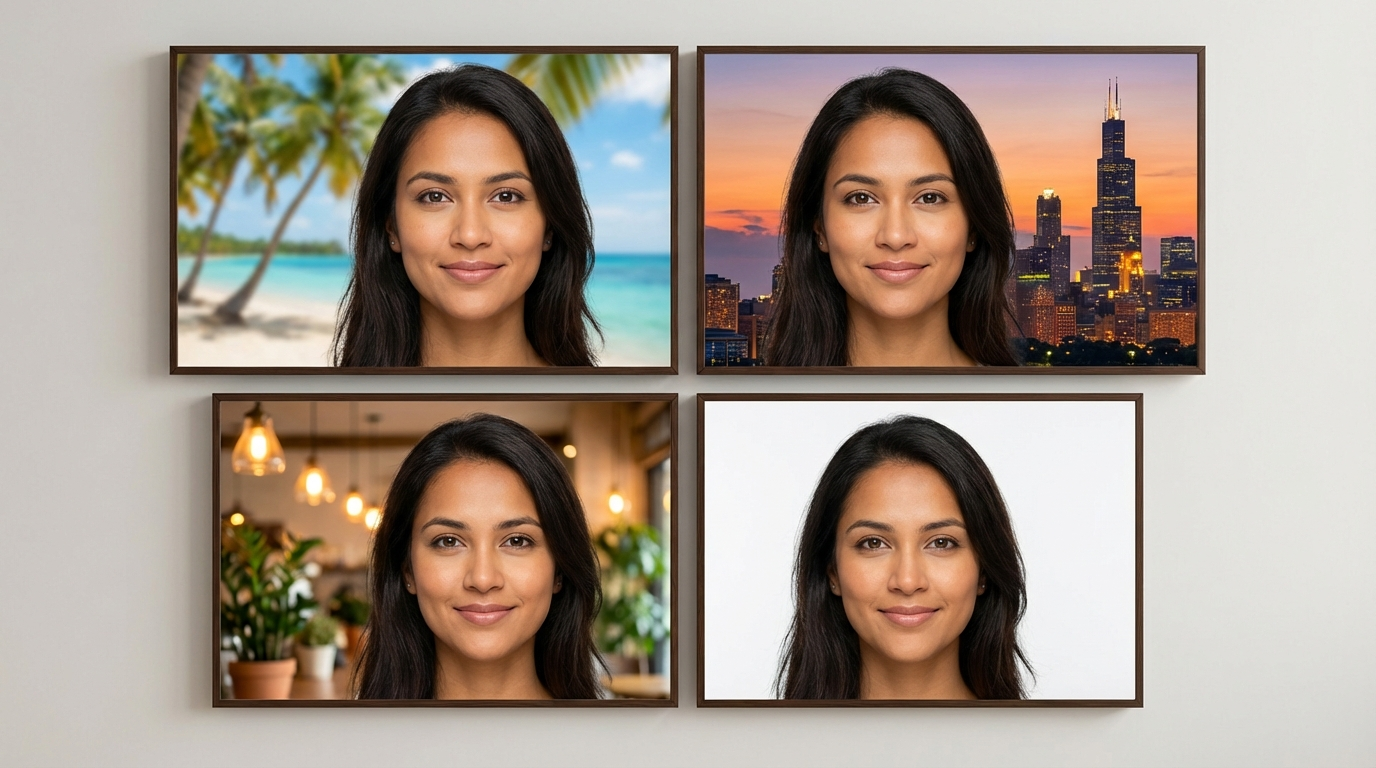
Background Replacement
Swap backgrounds while keeping the subject intact with natural lighting that matches the new scene.
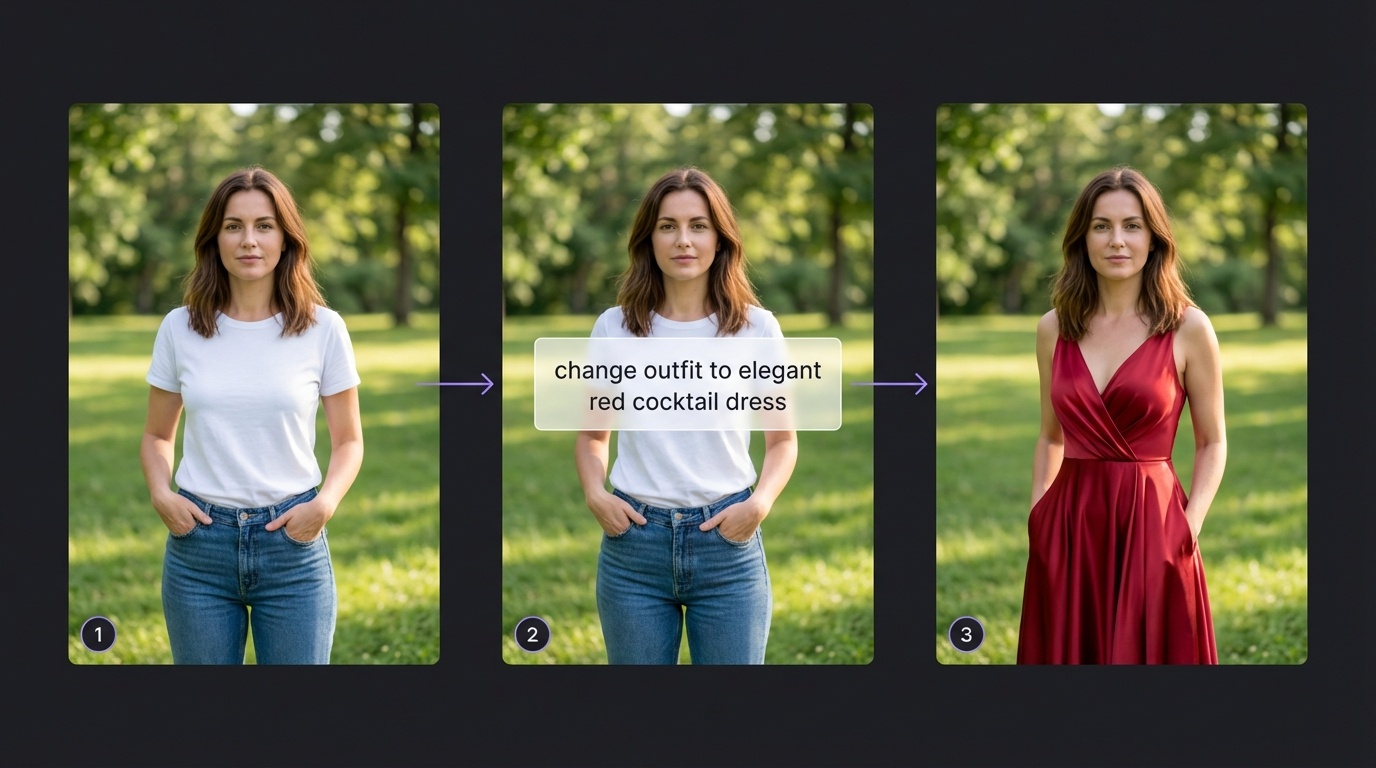
Outfit Changes
Change what a person is wearing with specific fabric, color, and style control in a single prompt.
Lighting and Atmosphere
Modify lighting conditions, time of day, weather, and mood while maintaining subject consistency.
Available Editing Models
Nano Banana Pro -- Best for SFW Editing
Best for: Pose matching, identity-preserving edits, multi-image reference editing
Nano Banana Pro is the most versatile editing model on the platform. It excels at taking two images as input -- your character and a reference -- and combining them intelligently while preserving identity from the first image.
Key capabilities: Accept multiple input images (character plus reference pose or scene), preserve identity from the first image while applying changes from the second, excellent at replicating poses, outfits, and settings from reference images, and strong at style transfer between images.
Prompt tips: Be explicit about which image is the identity source and which is the reference. Example: "Replicate the person from the first image in the exact pose and clothing of the person in the second image. Keep the identity and face from the first image."
Motion Control Preparation
Nano Banana Pro is ideal for preparing character images for Motion Control video generation. Use it to match your AI influencer's pose to the first frame of a reference dance video before generating.
Qwen 2.0 Pro Edit -- and Precision Editing
Best for: Precision text-based editing, complex multi-step modifications, high-fidelity results
Qwen 2.0 Pro Edit excels at following detailed text instructions to make precise modifications. It understands complex prompts and can execute sophisticated edits in a single pass. At 7,000 credits, it delivers premium quality at half the cost of Nano Banana Pro.
Key capabilities: Exceptional at following detailed text instructions, handles complex multi-element edits, strong understanding of spatial relationships, excellent color and lighting adjustments, high-fidelity output with minimal artifacts.
Prompt tips: Be as specific as possible. Describe exactly what should change and what should stay the same. Example: "Change the woman's dress from red to blue, add sunglasses, and change the background to a beach at sunset. Keep her face, hair, and pose exactly the same."
GPT Image 1 -- Best for Creative and Text Edits
Best for: Creative and artistic edits, text rendering in images, conceptual transformations
GPT Image 1 leverages OpenAI's image understanding to produce creative, high-quality edits. It particularly excels at understanding conceptual prompts and adding readable text or typography to images.
Best use cases: Adding text or typography to images, creative and artistic style transformations, conceptual edits like "make this look like a movie poster," and edits requiring strong understanding of context and meaning.
Seedream 4 and 4.5 -- Best for Photorealism
Best for: High-resolution photorealistic editing, detail-oriented modifications
The Seedream models are optimized for photorealistic output. They handle detail-rich edits exceptionally well, with strong preservation of textures, fine details, and visual consistency. Seedream 4.5 offers improved quality over its predecessor.
Qwen Edit Plus -- Budget-Friendly Editing
Best for: Quick edits, experiments, high-volume workflows
At just 3,000 credits per generation, Qwen Edit Plus is the most affordable editing option. It offers decent quality for basic modifications and is ideal for testing prompts before committing to a premium model.
Model Comparison
Editing Model Comparison
Step-by-Step Editing Workflow
Prepare Your Source Image
Use a high-resolution, well-lit image with a clearly visible subject. Supported formats: JPG, JPEG, PNG up to 10MB. Higher input quality produces better output.
Choose the Right Model
Need pose or outfit from a reference? Nano Banana Pro. Complex text-described edit? Qwen 2.0 Pro Edit. Adding text? GPT Image 1. Photorealistic detail? Seedream 4.5. Budget edit? Qwen Edit Plus.
Craft Your Prompt
Be specific about what changes. Specify what should stay the same. Use clear, direct language with concrete terms: colors, materials, positions, sizes.
Select Resolution
Standard resolution for testing and iteration. High resolution for final content and social media. Maximum resolution for print and large displays.
Generate and Iterate
Review the result, adjust your prompt if needed, try different models if one is not producing the desired output, and save successful results.
Post-Processing (Optional)
Upscale the image for higher resolution, fine-tune specific areas with an additional editing pass, or crop for your target platform.
Prompt Craft: Getting the Best Results
The prompt is the most important factor in getting the result you want. Here are specific templates for common edit types.
Outfit Change
Change the person's clothing to [describe new outfit in detail]. Keep the face, hair, body position, and background exactly the same. Maintain the same lighting and photo style.
Example: "Change her outfit to a black leather jacket with a white t-shirt underneath, high-waisted blue jeans, and white sneakers. Keep her face, hair color, pose, and the coffee shop background exactly the same."
Background Swap
Replace the background with [describe new background]. Keep the person exactly as they are, including their pose, clothing, and expression. Match the lighting to the new background naturally.
Example: "Replace the background with a tropical beach at sunset. Keep the person identical including pose, outfit, and expression. The warm sunset light should cast a golden glow on the subject."
Expression Change
Change the person's facial expression to [describe new expression]. Keep everything else -- clothing, pose, background, hair -- completely unchanged.
Lighting and Time of Day
Transform the lighting in this image to [golden hour / nighttime / overcast day]. Adjust shadows and highlights naturally. Keep all subjects and their positions unchanged.
Prompt Pitfalls to Avoid
Do not use vague prompts like "make it better" or "improve this." Do not mix too many changes in one prompt -- split complex transformations into multiple passes. Always mention what should stay the same, not just what should change.
Advanced Editing Techniques
Chained Editing
Apply multiple edits sequentially for complex transformations that would be impossible in a single prompt.
First Pass: Change the Pose
Use Nano Banana Pro with a reference image to match a specific pose while preserving identity.
Second Pass: Modify the Outfit
Use Qwen 2.0 Pro Edit to change clothing, accessories, and styling details on the posed image.
Third Pass: Adjust the Scene
Modify the background, lighting, and atmosphere with a final editing pass for the complete transformation.
Each pass builds on the previous result, allowing you to create edits that no single model could achieve alone.
Style Consistency Across Multiple Images
When editing a series of images for a social media feed:
- Use the same model for all images in the series
- Keep your prompt structure consistent across edits
- Reference the same style descriptors in every prompt
- Consider training a LoRA for the most consistent results with character consistency
Tips for Best Results
Do's
- Start with high-quality source images: The AI can only work with what you give it
- Test with Qwen Edit Plus first: It is cheaper at 3,000 credits, and if it produces a good result you save credits
- Be precise in your language: Ambiguity leads to unpredictable results
- Iterate on your prompt: Your first generation is rarely perfect. Refine based on results.
- Save successful prompts: Build a library of prompts that work well for future reference
- Use reference images: When possible, provide visual references rather than relying solely on text
Don'ts
- Don't use vague prompts: "Make it better" will not produce useful results
- Don't expect perfection first try: AI editing is an iterative process
- Don't ignore resolution settings: Low-resolution edits look fine small but fall apart enlarged
- Don't mix too many changes: Complex multi-change prompts can confuse models. Split into passes.
- Don't forget lighting consistency: When changing backgrounds, ensure subject lighting makes sense
Use Cases by Industry
AI Influencer Management
Maintain consistent character appearance across all content. Generate dozens of outfit variations for Instagram feeds. Create location-based content without traveling. Produce seasonal content year-round.
Social Media Content Creation
Generate multiple visual variants for A/B testing. Create lifestyle imagery for different platforms. Prepare images for AI video generation by matching poses to Motion Control reference videos.
E-Commerce and Marketing
Virtual try-on for products. Product photos in different settings and contexts. Ad creative variations at scale. Localized content for different markets without new photoshoots.
Frequently Asked Questions
Which model should I use if I am not sure?
Start with Qwen 2.0 Pro Edit for general-purpose editing. It handles most edit types well and follows text instructions accurately at 7,000 credits. If you need multi-image reference editing (matching poses or outfits from a reference photo), use Nano Banana Pro.
Can I edit the same image multiple times?
Yes. You can take the output of one edit and use it as the input for another. This "chained editing" approach is the recommended method for complex transformations that involve multiple changes.
Why does my edit not match my prompt exactly?
AI models interpret prompts probabilistically. Try being more specific, use different phrasing, or switch to a different model. Some models handle certain types of edits better than others. Qwen 2.0 Pro Edit is generally the most accurate at following detailed text instructions.
What image formats are supported?
JPG, JPEG, and PNG are supported. Maximum file size is 10MB. Minimum dimensions are 300px width and height. For best results, use images at 1080p or higher resolution.
How do I preserve my AI character's identity when editing?
For identity preservation, Nano Banana Pro is the best choice. It is specifically designed to transfer identity from one image while applying changes from another. Always explicitly mention "keep the face and identity from the first image" in your prompt.
Can I use AI-edited images for video generation?
Absolutely. One of the most powerful workflows is editing an image to match a specific pose, then using that image as input for Motion Control or Kling v3.0 I2V video generation. This gives you maximum control over the final video output.
Start Editing with AI
Ready to transform your images? The AI image editing tools on MakeInfluencer.ai put professional-grade editing capabilities in the hands of every creator -- no Photoshop skills required.
Sign In to MakeInfluencer.ai
Create your account or log in to access the full suite of AI image editing models.
Navigate to Image Generator
Select an editing model from the dropdown -- start with Qwen 2.0 Pro Edit or Nano Banana Pro.
Upload and Describe
Upload your source image, write a clear and specific prompt describing your desired changes.
Generate and Iterate
Review the result, refine your prompt, and generate again until you achieve the perfect edit.